When Power BI row-level security is not working, check the role rule, its relationship path, the identity returned for the user, role membership in the service and the user’s workspace permissions. Test with a known account and expected row set; never assume that hiding a page or filter provides security.
I use the sequence below because it moves from the model outward to the service. Keep a second authorised person involved where production access is sensitive, and test both a user who should see rows and one who should see none.
1. Define the expected access result
Symptom: Somebody says RLS is broken, but it is unclear whether they see all rows, no rows or the wrong region.
Cause: Security cannot be validated without a specific identity-to-data expectation.
Fix: Choose a test user and record the exact entities they should see: for example, Region A only. Choose a negative test account that should see nothing. Use non-sensitive test data where possible, and do not send screenshots containing confidential rows through an uncontrolled channel.
2. Test the role in Power BI Desktop
Symptom: The report author sees everything and cannot tell whether the role expression filters correctly.
Cause: Normal authoring view does not simulate a role.
Fix: Open Modelling → View as, select the role and test the relevant page. For dynamic security, use the option to test as another user and enter the same identity format stored in the access table. Add a temporary table of permitted business keys so you can see the filtered set directly.
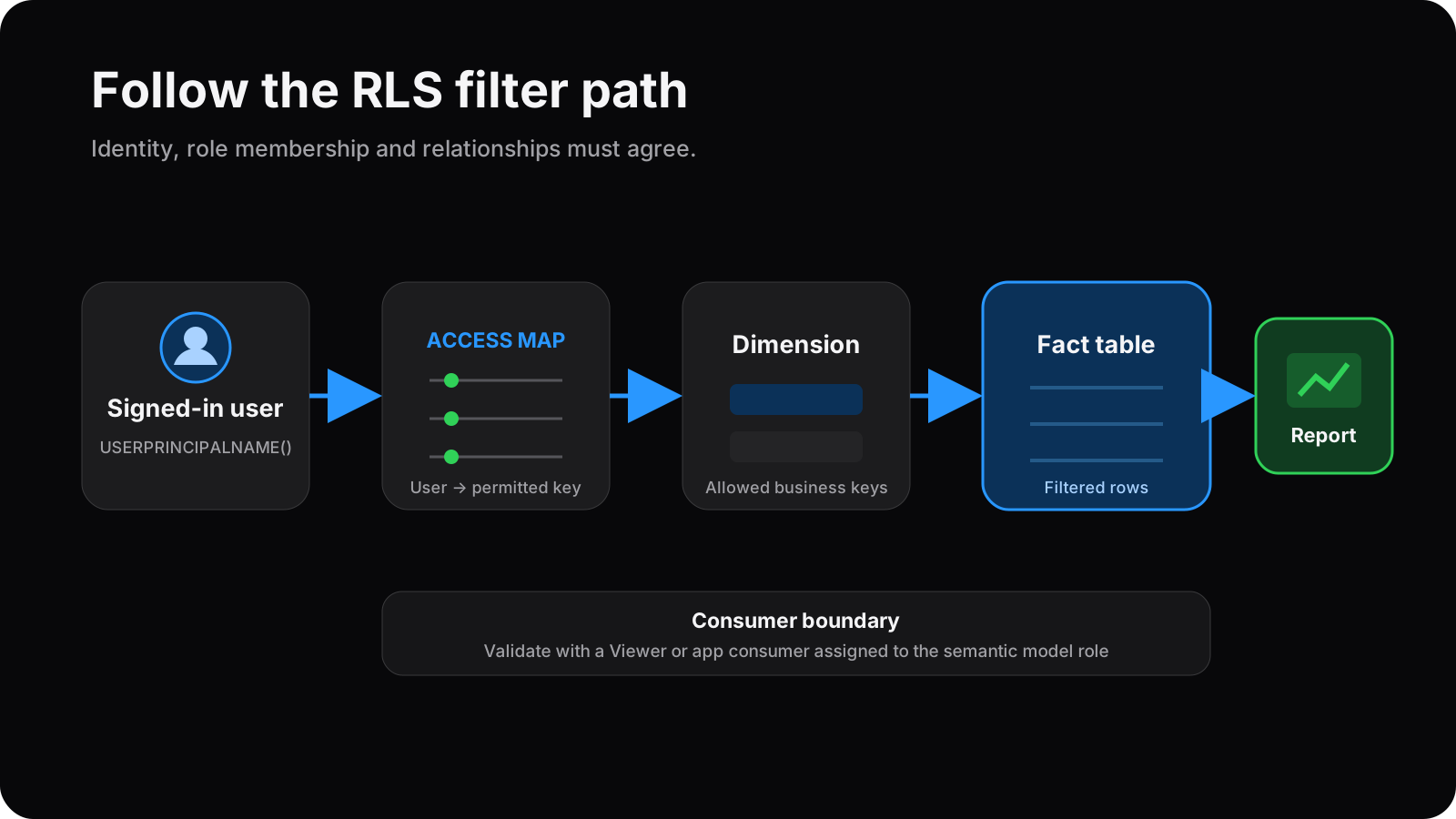
3. Simplify the rule before debugging dynamic security
Symptom: A dynamic expression returns every row or none, and the relationship path has not yet been proven.
Cause: Identity matching and model propagation are being tested at the same time.
Fix: Temporarily test a static rule against a known value, such as a single region key. If that filters the fact rows, the relationship path works and you can concentrate on identity. If it does not, fix the model path before changing the dynamic expression. Remove the temporary rule once the test is complete.
4. Validate the relationship path
Symptom: The security table filters itself, but report totals remain unchanged.
Cause: There may be no active path from the secured table to the fact table, or the filter direction may not permit propagation. Ambiguous and many-to-many designs make this harder to reason about.
Fix: Trace the path in Model view. Confirm keys, cardinality and active relationships. Keep the access table at a clear grain, such as one row per user and permitted region. Configure security filter propagation only where the model requires it and the path is understood; do not enable bidirectional filtering broadly as a trial-and-error fix.
5. Check the signed-in identity
Symptom: Static security works, but dynamic RLS returns no rows for a valid user.
Cause: The access table value may not exactly match the identity returned in the service. Email aliases, spaces, old domains and blank mappings are common causes.
Fix: A typical role filter on a user-access table is:
UserAccess[Email] = USERPRINCIPALNAME()
Use the actual table and column names, and confirm that one stored value matches the returned user principal name. Normalise and validate identities during data preparation rather than adding increasingly complex string handling to the security rule. Treat the access table as controlled data with a named owner.
6. Assign users or groups to the published role
Symptom: The role works in Desktop but the intended consumer sees no restriction—or cannot access the report at all.
Cause: Desktop roles are definitions. After publication, the relevant user or security group must be assigned to the role on the semantic model, and report access must also be granted.
Fix: In the Power BI service, open the semantic model’s security settings and review role membership. Prefer governed groups where that matches the organisation’s identity process. Then use the service’s role testing facility and, finally, test with the real consumer account. Republishing a model does not replace a proper membership review.
7. Check workspace permissions
Symptom: A colleague assigned to the role still sees all rows in the workspace.
Cause: They may be a workspace Admin, Member or Contributor. Those roles have edit permissions and are not the correct boundary for testing consumer RLS.
Fix: Test with a workspace Viewer or an app consumer who is assigned to the semantic model role. Keep content-management permissions separate from report-consumer access. Do not downgrade somebody’s production permissions casually; agree any workspace role change with the workspace owner.
8. Look for overlapping roles
Symptom: A user sees more regions than expected even though each individual role looks correct.
Cause: Power BI combines the rows allowed by multiple roles. Role membership is additive rather than a restrictive intersection.
Fix: Review every role and group that includes the user, including nested group membership managed outside Power BI. Avoid designing a “deny” role to cancel a permissive role. Make role ownership and membership review part of governance, especially when staff move teams.
9. Retest after publication
Symptom: The local file and service appear to behave differently after a recent change.
Cause: The wrong file may have been published, the app may not have been updated, or cached assumptions may be masking which version is under test.
Fix: Confirm the workspace, semantic model and report version. Test the role in the service, then use the intended delivery route and account. Record the expected and actual row sets. For high-risk data, include access testing in the release checklist rather than treating it as a one-off configuration.
RLS is one part of the access model
Row-level security filters rows in the semantic model; it does not replace tenant settings, workspace governance, sharing controls or source-system security. The safest design is understandable: a controlled mapping table, a clear relationship path, deliberate role membership and repeatable tests.
My Power BI governance and RLS service covers that wider design. The UK local council Power BI case study provides related public-sector reporting context while retaining its existing verified results.
Frequently asked questions
Why does RLS work in Desktop but not the Power BI service?
The user may not be assigned to the semantic model role, the published model may differ, or the user may have an elevated workspace role. Test the published role with the intended account.
Does Power BI RLS apply to workspace admins and members?
RLS is intended for consumers with read access, such as workspace Viewers or app consumers. Admin, Member and Contributor permissions allow editing and are not a suitable RLS test boundary.
What should USERPRINCIPALNAME return?
In the service it normally returns the signed-in user’s user principal name. Check the actual returned identity and match it to the access table values used by the role.
Do multiple Power BI RLS roles make access more restrictive?
No. When a user belongs to multiple roles, their allowed rows are combined. Overlapping membership can therefore reveal more data, not less.
Need an independent RLS check?
I can review the role logic, relationship path and service setup, then document the risks and priority actions.
Book a Power BI Health Check