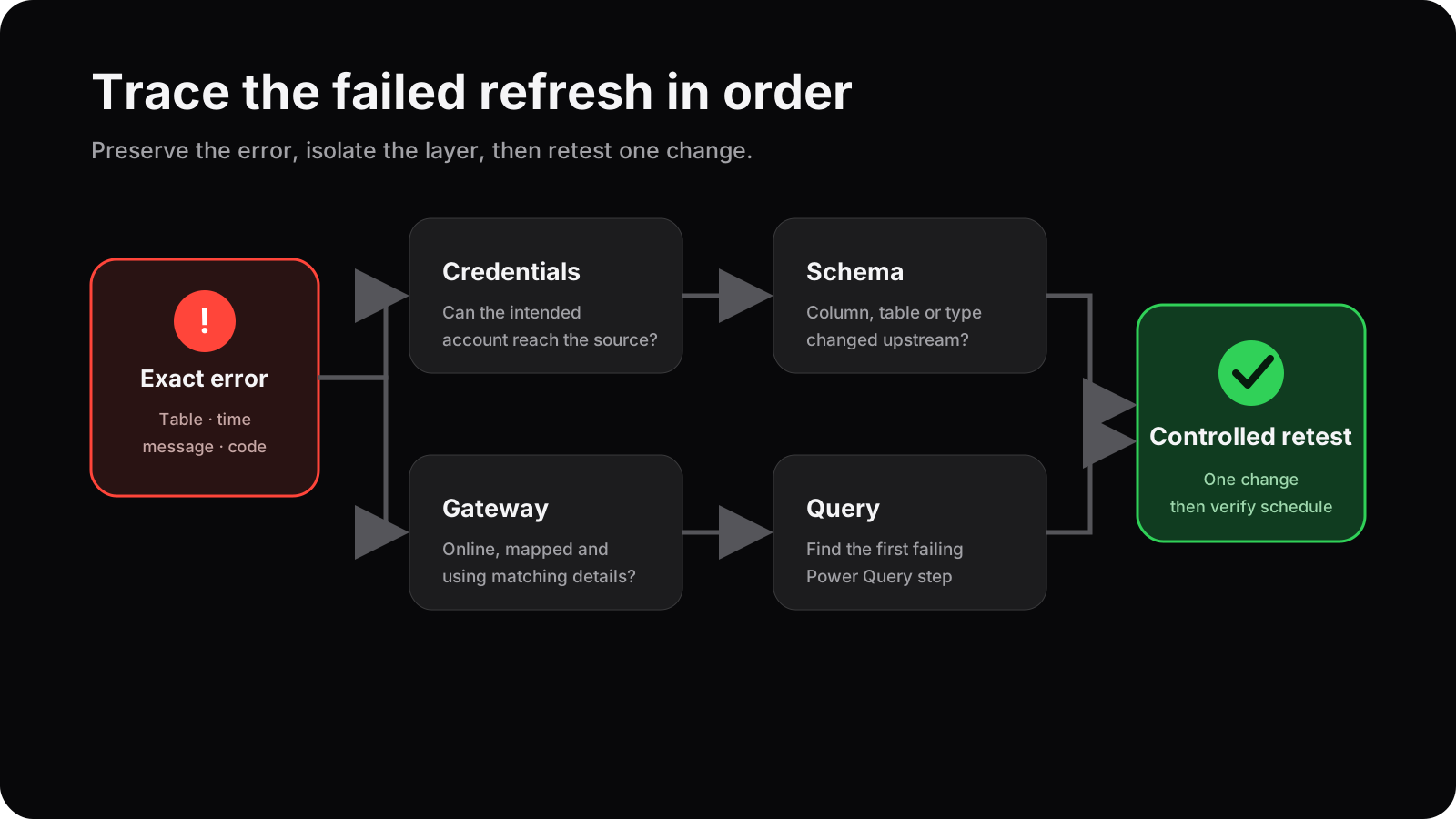
When a Power BI refresh fails, the error normally sits in one of five areas: access to the source, gateway configuration, a changed schema, a failing Power Query step or a timeout. Capture the exact error first, then test each layer in order rather than repeatedly pressing refresh.
I follow this checklist to preserve the evidence and narrow the fault quickly. A refresh error is a symptom; the useful question is which table, connection or transformation failed and where it was running.
1. Read the full refresh history entry
Symptom: The service says “Refresh failed” but the notification gives little context.
Cause: The useful detail is often inside the semantic model’s refresh history rather than the summary email.
Fix: Open the workspace, select the semantic model and review Refresh history. Record the timestamp, duration, error code, named table or partition, cluster information and whether the failure was scheduled or manual. Keep the wording intact while investigating.
2. Decide whether the failure is local or service-only
Symptom: The PBIX refreshes in Desktop but the published semantic model fails, or both fail in the same place.
Cause: Desktop and the service may use different credentials and network routes. A failure in both usually points more directly to the source data or query.
Fix: Save a controlled copy and run a manual refresh in Desktop. In Power Query, refresh the affected query and identify the first step that errors. If Desktop succeeds, concentrate on service credentials, privacy levels, gateway and connection mapping instead of rewriting transformations.
3. Check credentials and permissions
Symptom: The error mentions credentials, authorisation, an invalid key or inability to connect.
Cause: A password, token or organisational account may have changed, expired or lost permission. The dataset owner may also have changed.
Fix: Review the semantic model’s data source credentials and sign in using the intended account. Confirm that account can still reach the source and the required objects. Use the organisation’s approved authentication method; do not embed a personal password in a query or share credentials between people.
4. Verify the on-premises data gateway
Symptom: A source works on the office network or in Desktop but cannot be reached from the service.
Cause: The gateway may be offline, outdated, mapped to different source details or running under an account without source access.
Fix: Confirm that the correct gateway cluster is online. Compare server, database and connection details exactly; an alias used locally may not match the configured gateway source. Check the data source credentials held by the gateway and test the connection. If several semantic models using the same gateway fail together, treat the shared gateway as the likely fault.
5. Look for source schema changes
Symptom: The error names a missing column, conversion problem, table, worksheet or key.
Cause: A source column may have been renamed or removed, a file tab may have changed, or a value no longer matches the expected data type.
Fix: Open the query and step forward from Source. Stop at the first failing step. Compare the incoming column names and types with what that step expects. Correct the query only after confirming whether the source change was intentional. If an upstream owner controls the file or database, agree a stable contract rather than silently patching every recurring change.
6. Isolate the query and data error
Symptom: One table fails while others refresh, or a generic evaluation error hides the offending value.
Cause: A merge, expansion, custom function, type conversion or unexpected null can fail only for particular rows or files.
Fix: Refresh queries individually and inspect dependencies. In the affected query, review each applied step and filter to errors where appropriate. Do not simply remove error rows unless the reporting requirement permits that loss and it is documented. Fix the source or make the transformation deliberately handle the known condition.
7. Investigate timeouts and volume
Symptom: Refresh runs for a long period and then fails, particularly after data growth or during busy hours.
Cause: The source query, network, gateway or service resource may not complete within the available window. Non-folding transformations can also move excessive work away from the source.
Fix: Compare recent durations and data volumes. Test the source query with the database owner, check gateway resource use, and review whether early filters and column selection can reduce work while preserving the requirement. Where query folding is supported, confirm that important filters still fold. Avoid stating a universal timeout or refresh limit: it depends on the connection, licence and capacity configuration.
8. Retest without destroying the evidence
Symptom: Several speculative edits have been made and nobody knows which one helped.
Cause: Refresh investigations become difficult when credentials, gateway mappings, queries and publication are all changed together.
Fix: Make one controlled change, run a manual refresh and record the result. Then confirm the next scheduled refresh. Republish only when the PBIX itself needs changing, because publication can overwrite settings and create another variable. Document the final cause and owner, especially when the source or gateway sits outside the report team.
Prevent the same failure recurring
A reliable refresh process needs ownership as well as a technical fix. Record which account authenticates, who owns the gateway, which source fields are required and how a failure is escalated. The goal is not to promise that refresh can never fail; it is to make failures visible, diagnosable and recoverable.
For repeatable data flows and report delivery, see my Power BI automation service. The UK local council case study provides relevant public-sector context without changing its verified results.
Frequently asked questions
Why does Power BI refresh in Desktop but fail in the service?
The service may use different credentials, privacy settings or an on-premises gateway. Compare the service connection and gateway mapping with the source details used in Desktop.
Where can I see the Power BI refresh error?
Open the semantic model in the service and review its refresh history. Record the exact message, failed table or partition and timestamp.
Can a renamed source column break refresh?
Yes. Later Power Query steps may still refer to the old column name or type. Step through the query from Source until the first error appears.
Should I republish immediately after a refresh failure?
Not until the cause is understood. Repeated republishing can hide evidence and may overwrite service settings. Test a controlled fix first.
Need a structured refresh diagnosis?
I can review the model, queries, service settings and gateway evidence, then give you a prioritised action list.
Book a Power BI Health Check